
This is an old revision of the document!
Table of Contents
This guide was written for Fallout 4 and may be only partially applicable to other games.
This guide covers merging your archives for Fallout 4 Creation Club content.
If you've reached the BA2 Limit, this can potentially cut down the number of archives significantly.
Terminology
- CC: Creation Club (or related files)
- BA2: A
.ba2file, short for Bethesda Archive 2. Combines multiple data files into a single file with optional compression. - Module: Any
.esm,.esl, or.espfile. Also referred to as a Plugin.
Key Concepts
BA2 Loading
When the game starts and loads MyMod.esp, it tries to find these files and loads them if they exist:
MyMod - Main.ba2
MyMod - Textures.ba2
MyMod - Voices_en.ba2
MyMod - Voices_XX.ba2
The last one only if playing in a non-English mode, and XX varies with language.
BA2 file names don't have to match what's inside them (you could name an archive of textures MyMod - Main.ba2).
It also doesn't matter which module a BA2 is loaded with (but this does determine conflict winners!).
The only thing that matters is that the game can find them based on their file names.
Tools Used
- A
.7zfile extractor (I use NanaZip). - BSArchPro (Comes with xEdit. Download the latest from the xEdit Discord and extract it anywhere.)
Preparation
- Create a temporary
WIPfolder anywhere, containingGeneralandTexturesfolders:
WIP/
├───General/
└───Textures/
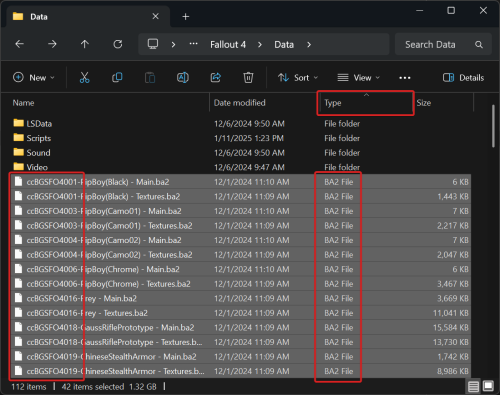
- Open the Fallout 4 Data folder.
e.g.C:\Program Files (x86)\Steam\steamapps\common\Fallout 4\Data\ - Sort by Type.
- Scroll to the BA2 files.
- Select all BA2 files with names that start with
cc.
- Move them all into the
WIPfolder. - Search the
WIPfolder forTextures.
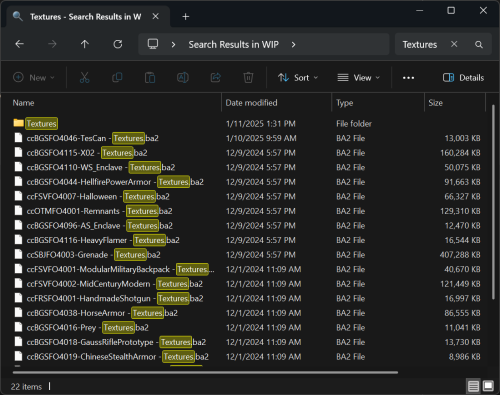
- Select all the Texture BA2 files.
- Drag and drop them onto the
Texturesfolder. - Click the
Backbutton or pressBackspaceto return toWIP. - Select all remaining BA2 files in
WIPand drag and drop them onto theGeneralfolder. - Open the
Generalfolder.


Merging
- Open
BSArchPro.exe. - Click
Clear Listat the top.
BSArchPro remembers selected files between runs so we want to be sure we have a clean slate. - Select all BA2 files in the
Generalfolder. - Drag and drop them onto the BSArchPro window.
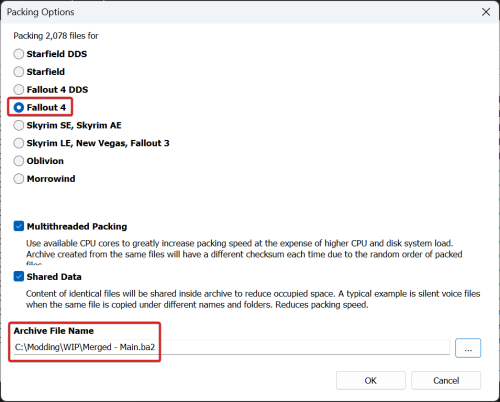
- Click
Packat the bottom. - Choose
Fallout 4(not the DDS option).
This format can hold any packable file. - Give the file a name ending with
- Main.ba2in yourWIPfolder.
I will be usingMerged - Main.ba2. - Click
OKto start the repacking process.
- Click
Clear Listat the top. - Select all BA2 files in the
Texturesfolder. - Drag and drop them onto the BSArchPro window.
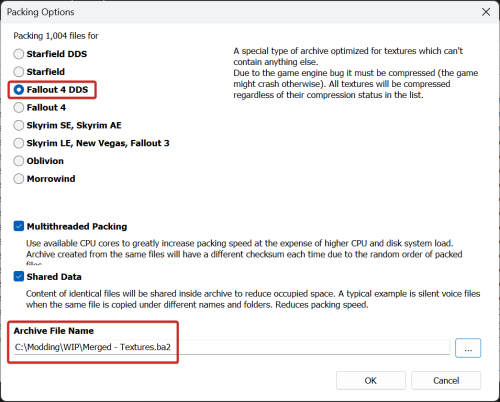
- Click
Packat the bottom. - Choose
Fallout 4 DDS.
This format can hold only textures, but allows optimized loading. - Give the file a name ending with
- Textures.ba2in yourWIPfolder.
I will be usingMerged - Textures.ba2. - Click
OKto start the repacking process. - Click
Clear Listat the top and close BSArchPro.


Using Your Merges
There are two ways you can have the game load your BA2 files:
- Use a dummy module to load them.
- Rename them to be loaded by a CC module.
Either choice is fine; this is primarily a preference-based decision.
Option 1: Load via Dummy Module
- Download this dummy module file and keep it with your merged BA2 files.
Merged.esl - If necessary, rename it to match your merged BA2 files (refer to Key Concepts).
- Add the dummy module and merged BA2 files to your mod manager.
- Set the dummy module to load along with your other CC.
Order is irrelevant as long as it is before the Unofficial Fallout 4 Patch.
This ensures that conflict winners are unchanged from your original setup.
Option 2: Load via CC Module
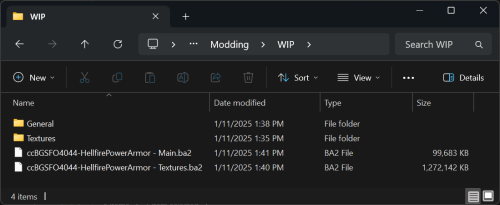
- Rename your merged BA2 files to match one of your CC modules (refer to Key Concepts).
Typically your first CC file is used, e.g. if your first CC isccBGSFO4044-HellfirePowerArmor.esl, you would name them like this:
- Add the merged BA2 files to your mod manager.
