
Table of Contents
This guide was written for Fallout 4 and may be only partially applicable to other games.
This guide covers merging your archives for Fallout 4 Creation Club content.
If you've reached the BA2 Limit, this can potentially cut down the number of archives significantly.
To check your current archive counts, use the Collective Modding Toolkit.
Terminology
- CC: Creation Club (or related files)
- BA2: A
.ba2file, short for Bethesda Archive 2. Combines multiple data files into a single file with optional compression. - Module: Any
.esm,.esl, or.espfile. Also referred to as a Plugin.
Key Concepts
BA2 Loading
When the game starts and loads MyMod.esp, it tries to find these files and loads them if they exist:
MyMod - Main.ba2
MyMod - Textures.ba2
MyMod - Voices_en.ba2
MyMod - Voices_XX.ba2
The last one only if playing in a non-English mode, and XX varies with language.
BA2 file names don't have to match what's inside them (you could name an archive of textures MyMod - Main.ba2).
It also doesn't matter which module a BA2 is loaded with (but this does determine conflict winners!).
The only thing that matters is that the game can find them based on their file names.
Tools Used
- A
.7zfile extractor (I use NanaZip). - BSArchPro (Comes with xEdit. Download the latest from the xEdit Discord and extract it anywhere.)
Preparation
- Create a temporary
WIPfolder anywhere, containingGeneralandTexturesfolders:
WIP/
├───General/
└───Textures/
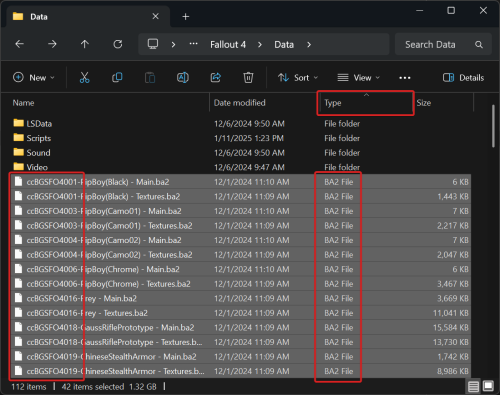
- Open the Fallout 4 Data folder.
e.g.C:\Program Files (x86)\Steam\steamapps\common\Fallout 4\Data\ - Sort by Type.
- Scroll to the BA2 files.
- Select all BA2 files with names that start with
cc.
- Move them all into the
WIPfolder. - Search the
WIPfolder forTextures.
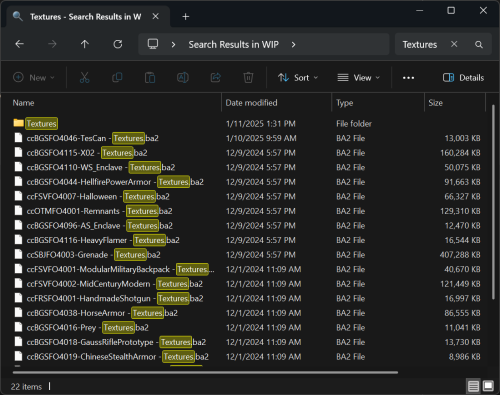
- Select all the Texture BA2 files.
- Drag and drop them onto the
Texturesfolder. - Click the
Backbutton or pressBackspaceto return toWIP. - Select all remaining BA2 files in
WIPand drag and drop them onto theGeneralfolder. - Open the
Generalfolder.


Merging
- Open
BSArchPro.exe. - Click
Clear Listat the top.
BSArchPro remembers selected files between runs so we want to be sure we have a clean slate. - Select all BA2 files in the
Generalfolder. - Drag and drop them onto the BSArchPro window.
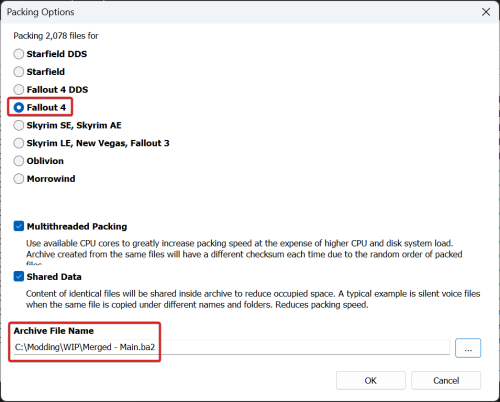
- Click
Packat the bottom. - Choose
Fallout 4(not the DDS option).
This format can hold any packable file. - Give the file a name ending with
- Main.ba2in yourWIPfolder.
I will be usingMerged - Main.ba2. - Click
OKto start the repacking process.
- Click
Clear Listat the top. - Select all BA2 files in the
Texturesfolder. - Drag and drop them onto the BSArchPro window.
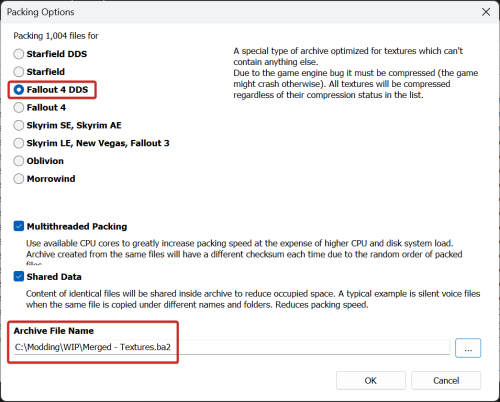
- Click
Packat the bottom. - Choose
Fallout 4 DDS.
This format can hold only textures, but allows optimized loading. - Give the file a name ending with
- Textures.ba2in yourWIPfolder.
I will be usingMerged - Textures.ba2. - Click
OKto start the repacking process. - Click
Clear Listat the top and close BSArchPro.


Using Your Merges
There are two ways you can have the game load your BA2 files:
- Use a dummy module to load them.
- Rename them to be loaded by a CC module.
Either choice is fine; this is primarily a preference-based decision.
Option 1: Load via Dummy Module
- Download this dummy module file and keep it with your merged BA2 files.
Merged.esl - If necessary, rename it to match your merged BA2 files (refer to Key Concepts).
- Add the dummy module and merged BA2 files to your mod manager.
- Set the dummy module to load along with your other CC.
Order is irrelevant as long as it is before the Unofficial Fallout 4 Patch.
This ensures that conflict winners are unchanged from your original setup.
Option 2: Load via CC Module
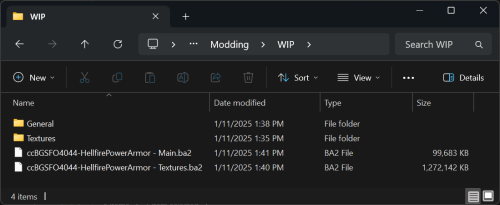
- Rename your merged BA2 files to match one of your CC modules (refer to Key Concepts).
Typically your first CC file is used, e.g. if your first CC isccBGSFO4044-HellfirePowerArmor.esl, you would name them like this:
- Add the merged BA2 files to your mod manager.
